PoolQ instructions
How to Declare for a Swim Meet or Event
When a swim meet or event is added to PoolQ, parents must declare whether their swimmer will attend by the deadline shown.
Please submit a response even if your swimmer will not be attending. This lets the coaches know that you have seen the information and helps them prepare.
For swim meets, PCM coaches choose each swimmer’s events after discussing them with the swimmer. Parents only need to confirm attendance and, for longer meets, indicate which days or sessions their swimmer can attend.
Step 1
Sign In to PoolQ
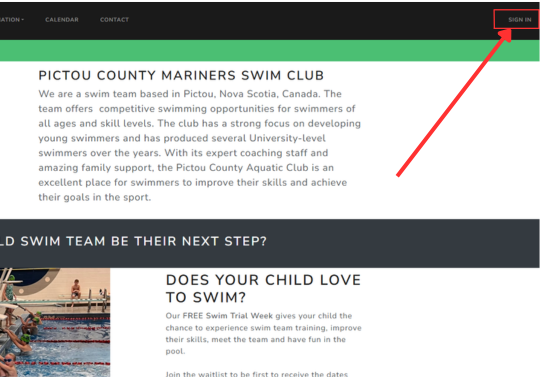
Go to the PCM website and select Sign In from the top-right corner of the page.
Sign in using the email address and password connected to your swimmer’s PoolQ account.
Step 2
Find the Swim Meet or Event
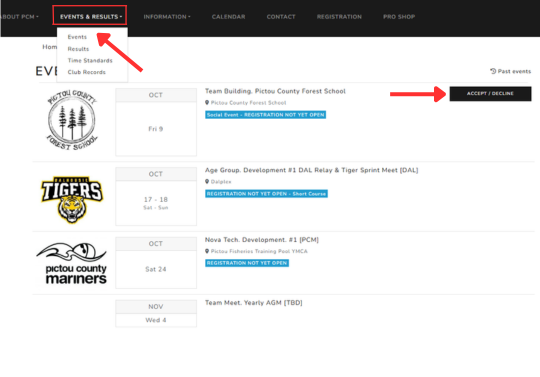
Open Events & Results from the main menu and select Events.
Find the swim meet or event you are looking for. When declarations are open, an Accept/Decline button will appear beside it.
Select Accept/Decline.
Step 3
Declare for Your Swimmer
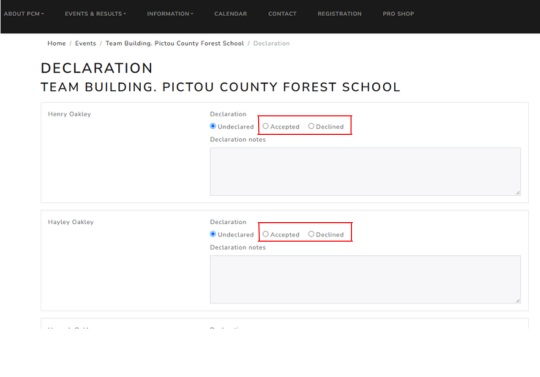
The declaration page will show each swimmer connected to your family account.
For each swimmer, select:
- Accepted if they will attend.
- Declined if they will not attend.
Please do not leave the swimmer marked as Undeclared.
If more than one swimmer is listed on your account, make sure you complete the declaration for each swimmer.
Longer or Multi-Day Meets
Tell the coaches which days or sessions your swimmer can attend.
For swim meets with more than one day or session, you may be asked to select the days or sessions your swimmer can attend.
Use the declaration notes box if you need to provide additional information, such as:
- Your swimmer can only attend one day.
- Your swimmer must leave by a particular time.
- You are unsure which session applies to your swimmer.
Parents do not need to select individual races. The coaches will discuss the meet with the swimmers and choose the appropriate events.
Step 4
Submit the Declaration
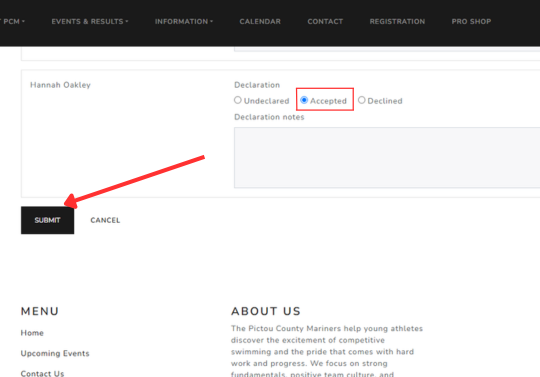
Once you have selected Accepted or Declined, scroll to the bottom of the page and select Submit.
Important: Your response will not be recorded until you select Submit.
Step 5
Check Your Declaration
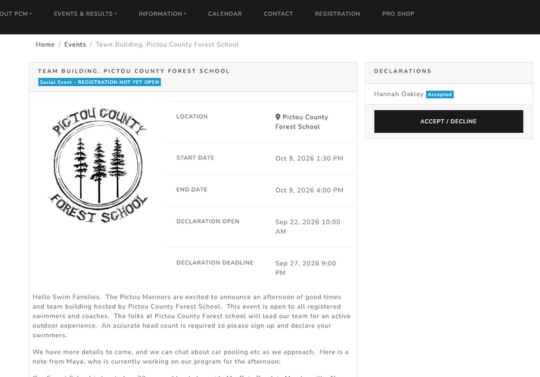
Return to the swim meet or event information page and check the Declarations box.
Your swimmer’s name should now show Accepted or Declined.
You can use the Accept/Decline button to update the declaration while registration remains open.
The information page may also include:
- Location and date
- Declaration deadline
- Warm-up or session information
- Additional instructions
Important Reminders
- Declare by the deadline shown in PoolQ.
- Submit a response even if your swimmer will not attend.
- For longer meets, confirm the applicable days or sessions.
- Do not select individual events unless specifically instructed by a coach.
- Read PCM emails and the information in PoolQ carefully, as additional details may be added.
- Once the deadline has passed, contact the coach if something changes. Do not assume that a late entry or change will be possible.
Need Help?
Emails will be sent when declarations open, and coaches will also speak with swimmers about upcoming swim meets or events.
If you are ever unsure whether your swimmer should attend, which sessions to choose or whether your declaration was submitted correctly, please ask.